

Cross-functional teams can deliver great results. They bring together people from different departments – product, engineering, design, marketing, and more – to work toward the same goal. When everything aligns, ideas improve, decisions happen faster, and projects move forward smoothly.
The challenge appears when the same people or limited resources are needed by multiple parts of the team at the same time. One designer gets pulled in five directions. A shared specialist becomes the bottleneck for three different sprints. Deadlines slip, stress rises, and collaboration starts to feel painful instead of productive.
This is a very common situation. The good news is that you can prevent most of these problems with better visibility and simple planning habits.
What is a cross-functional team?
A cross-functional team pulls people from different departments – think engineers, designers, marketers, and even sales – to tackle a shared goal. Unlike traditional setups where silos rule, these groups mix expertise at all levels, from juniors to seniors. They might report to various managers but unite for one project, like rolling out a customer portal.
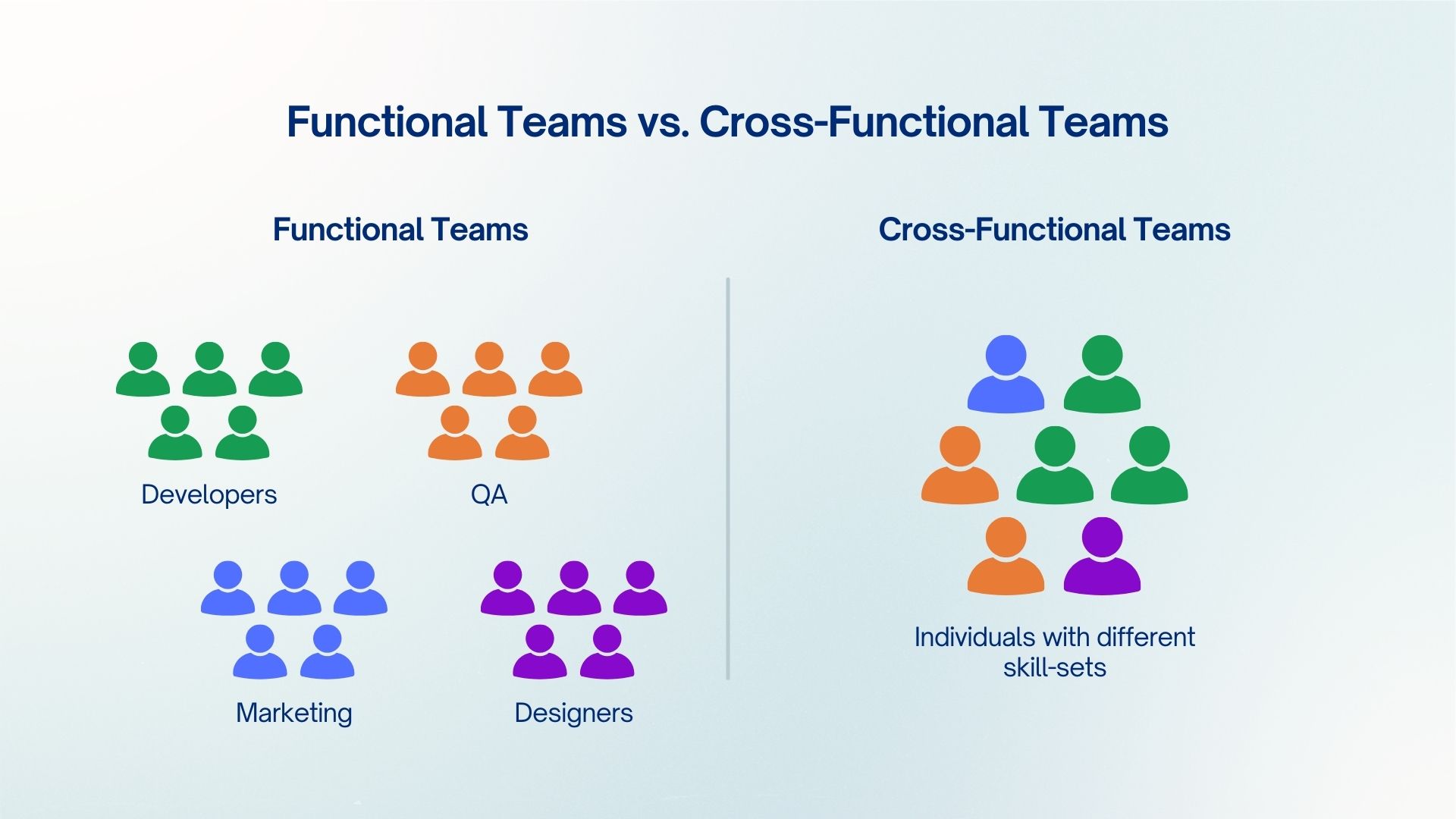
These teams shine because they spark innovation. Diverse views challenge old habits and cut groupthink. Members learn new skills, boosting satisfaction and retention. Companies move faster overall – projects wrap up efficiently without endless handoffs. Atlassian notes they help trial ideas before big hires and align everyone on customer needs.
But here’s the catch: about 75% of them struggle. Without clear direction, they spin wheels. That’s where shared resource management steps in. It ensures the right people contribute without burnout.
Problems with shared resources in cross-functional teams
When multiple teams depend on the same people or assets, small conflicts quickly turn into bigger delays. Here are the most common issues:
-
One person becomes a bottleneck. A senior developer or lead designer gets assigned to every important task, causing queues everywhere else.
-
Visibility is poor. No one has a clear picture of who is booked when, so double-bookings and last-minute scrambles happen often.
-
Department priorities clash. A marketer needs a quick review, but the engineer is focused on a critical bug fix. Both feel blocked.
-
Workloads become uneven. Some team members hit 120% capacity while others have spare time, leading to burnout on one side and frustration on the other.
-
Changes are hard to communicate. A schedule shift in one project isn’t visible to the rest of the team, so people keep working on outdated plans.
These problems are widespread. Many cross-functional teams struggle with exactly these patterns, especially when they grow beyond a handful of people or start working across time zones. Left unchecked, they slow delivery, increase stress, and make collaboration feel more difficult than it needs to be.
When do you need to manage shared resources?
Jump in when cross-functional work heats up. Signs include:
-
Multiple Jira projects feeding one initiative, like a product launch spanning engineering, design, and sales.
-
Repeated complaints: “I’m swamped” or “Why is this delayed?”
-
Overlaps in calendars or backlogs – shared experts ping-ponged between teams.
-
Scaling pains: Growing from 10 to 50 people, or adding remote folks across time zones.
-
Metrics slipping: Cycle times up 20%, utilization uneven (some at 120%, others idle).
If your team feels reactive – firefighting reschedules or chasing approvals – it’s time. Early management prevents 75% dysfunction rates. It builds trust, equips everyone with visibility, and lets you adapt to shifts like vacations or priority pivots. In Jira, when basic issue tracking shows bottlenecks but no capacity view, add resource tools. ProScheduler fits here, turning data into actionable timelines without leaving your workflow.
Think quarterly launches or agile sprints crossing departments. Proactive steps keep momentum, cut waste, and free time for creative work.
Detailed steps for managing shared resources in cross-functional teams
ProScheduler builds on Jira to make this visual and simple. Its Schedule Board acts like a shared calendar, with workload heatmaps and drag-and-drop ease. Programs unify projects; resources get tagged by skills. No more guesswork – changes sync real-time. Follow these steps to set it up.
Step 1: Use a Program to manage multiple projects in one board
Cross-functional work usually lives across several Jira projects. Trying to track everything separately creates silos and missed connections.
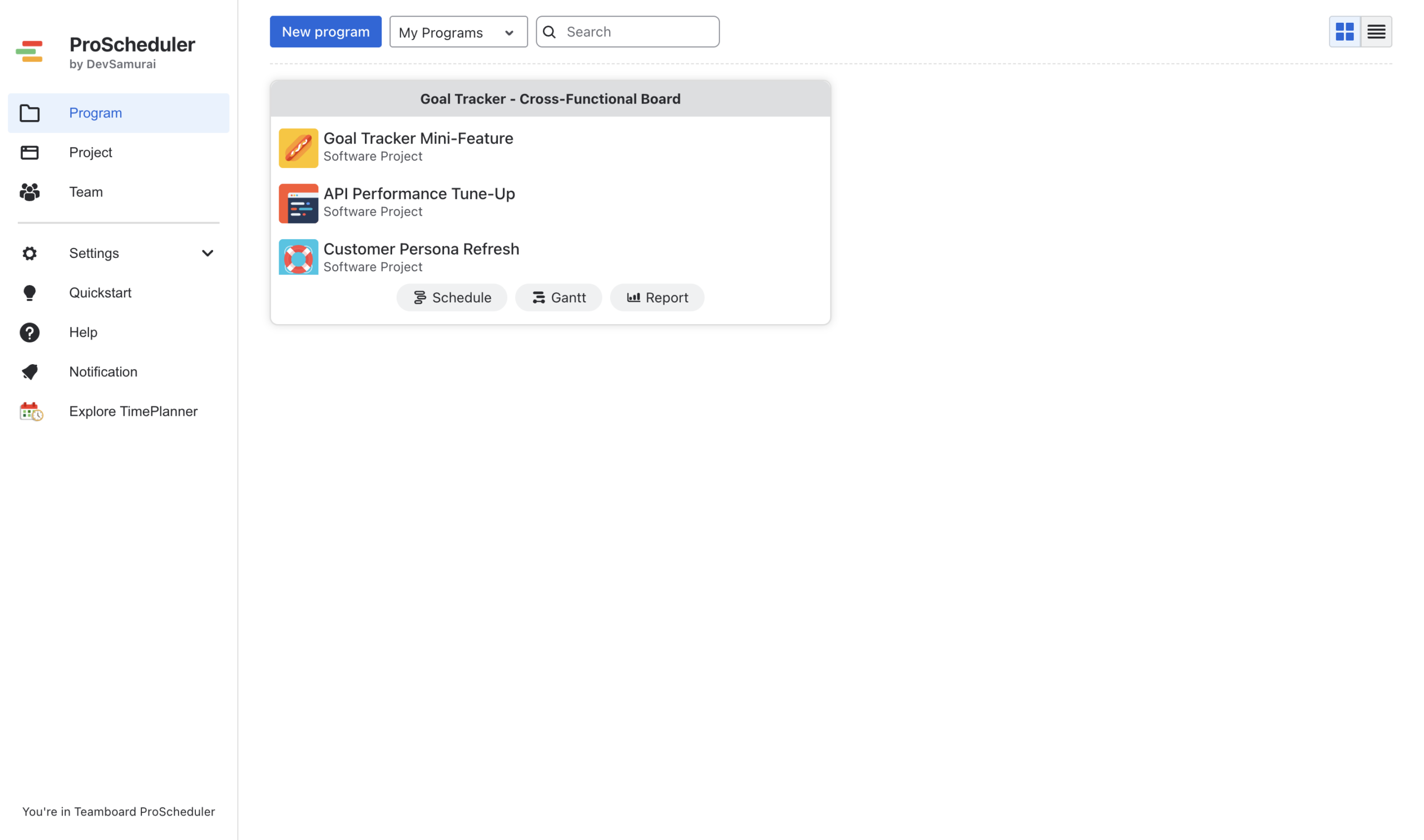
In ProScheduler:
-
Go to the Programs section from main page.
-
Create a new Program.
-
Add all the relevant Jira projects that share the same goal or resources.
Once set up, you get one board that shows tasks, timelines, and people across every project. This single view makes it much easier to see shared constraints, align on milestones, and avoid working in isolation.
Tip: Give the Program a clear name like “Q3 Product Launch – Cross-Team” so everyone immediately understands the scope.
Step 2: Ask team members to add their position and skills in app settings
Clear profiles mean fair matches. Without them, you assign blindly, overloading generalists.
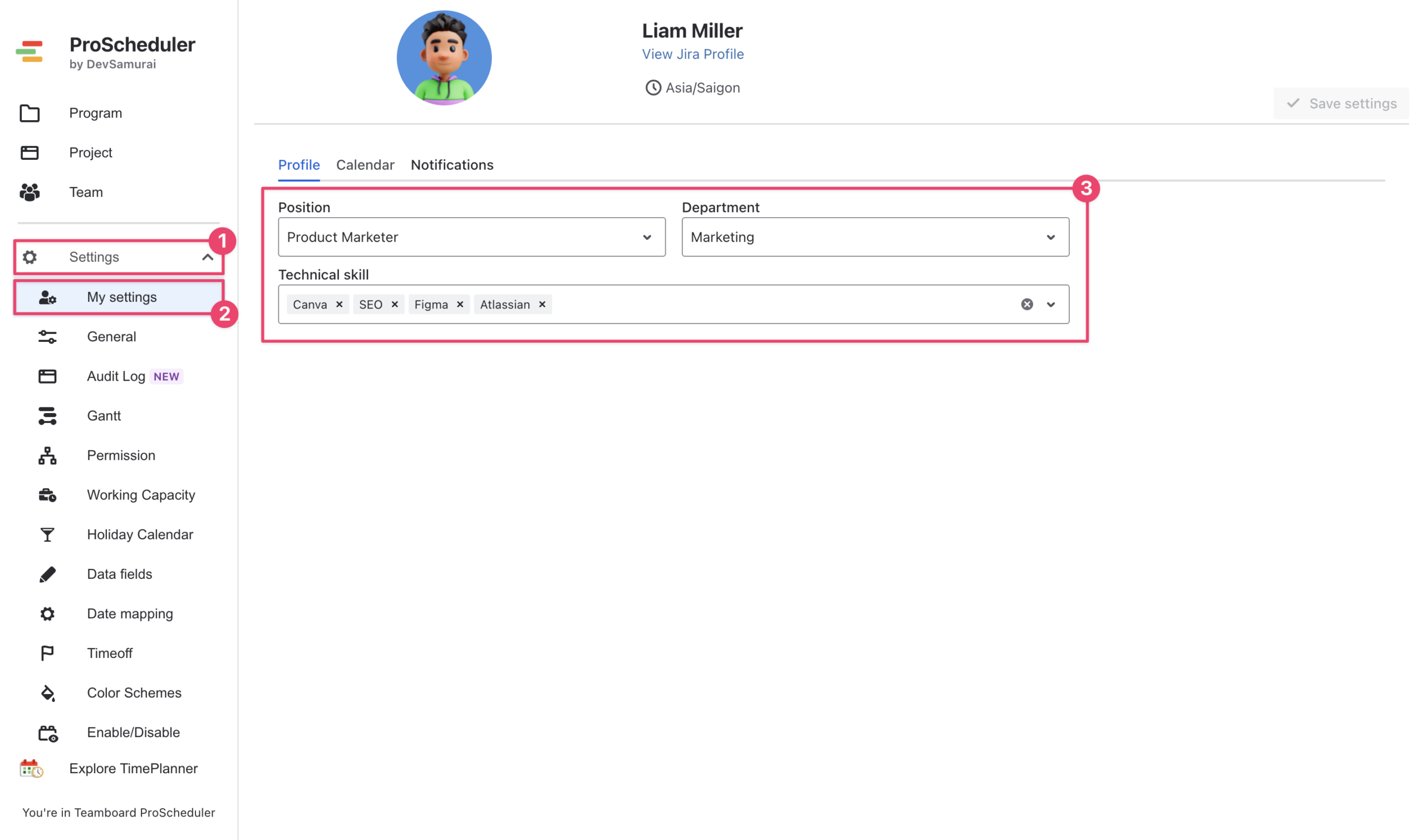
Direct your team:
-
In ProScheduler, go to App Settings → My Settings (personal profile).
-
Add position (e.g., “UI Designer”), department and skills (e.g., “Figma, Prototyping, Accessibility”).
This promotes cross-exposure – marketers learn dev basics, sparking ideas. It selects for expertise, as Atlassian advises, building independent contributors.
Tip: Set a quick team huddle or Slack reminder. Profiles update capacities too, reflecting real strengths.
Step 3: Define resources – add users, groups, and generic placeholders
Now build the resource pool that reflects your real team structure.
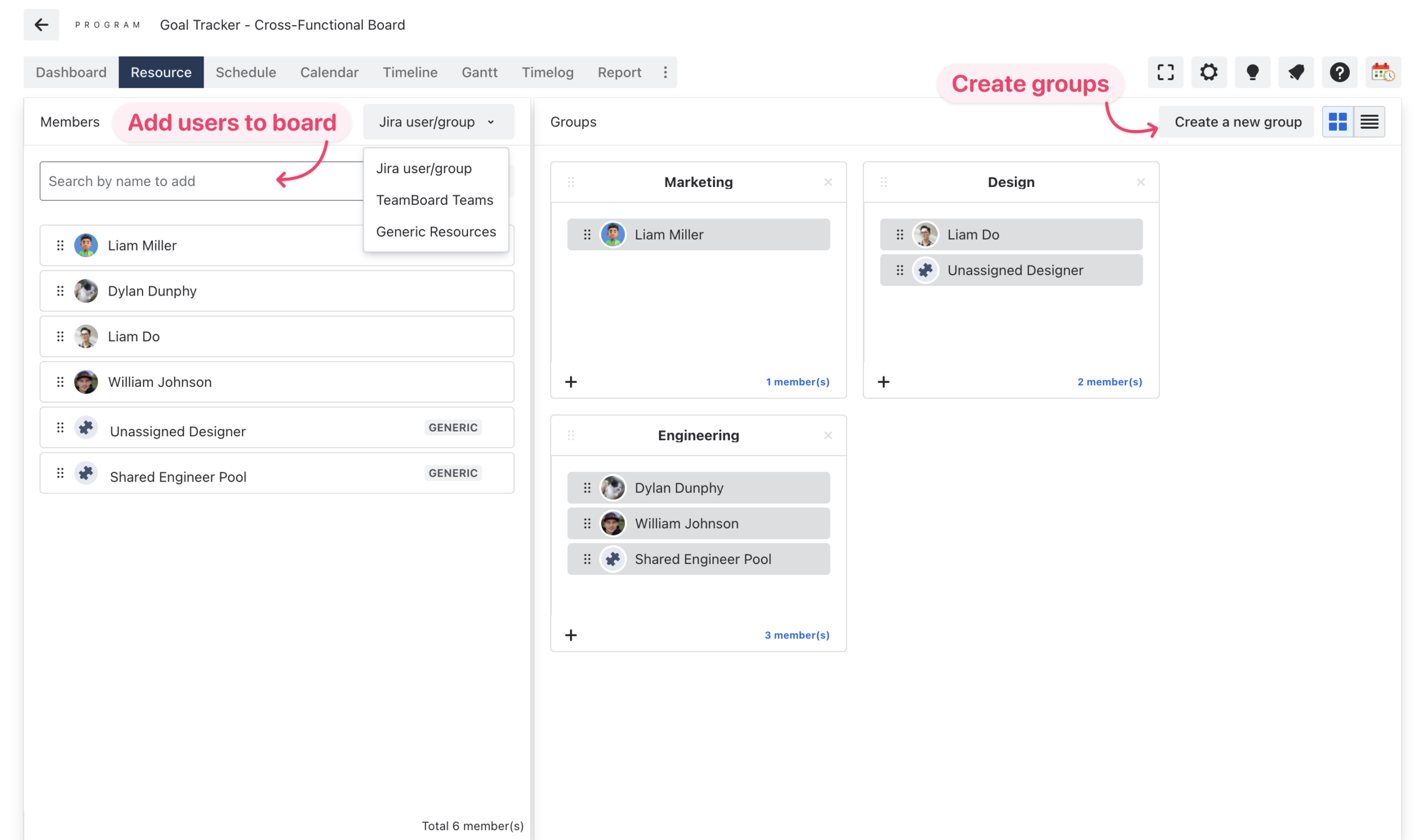
In the Resources tab:
-
Add individual users from Jira.
-
Create groups by department or function (Marketing, Engineering, Design, QA, etc.). You can add as many groups as needed.
-
Add generic placeholder resources like “Unassigned Designer” or “Shared Engineer Pool” for tasks that haven’t been assigned yet.
-
Set basic capacity rules: daily working hours, public holidays, and overload thresholds.
Grouping by department makes it easier to see cross-functional flow while still respecting how the organization is structured.
Tip: Focus first on the people and groups active in your current Program to keep the setup manageable.
Step 4: Switch to the Schedule board and organize by group or department
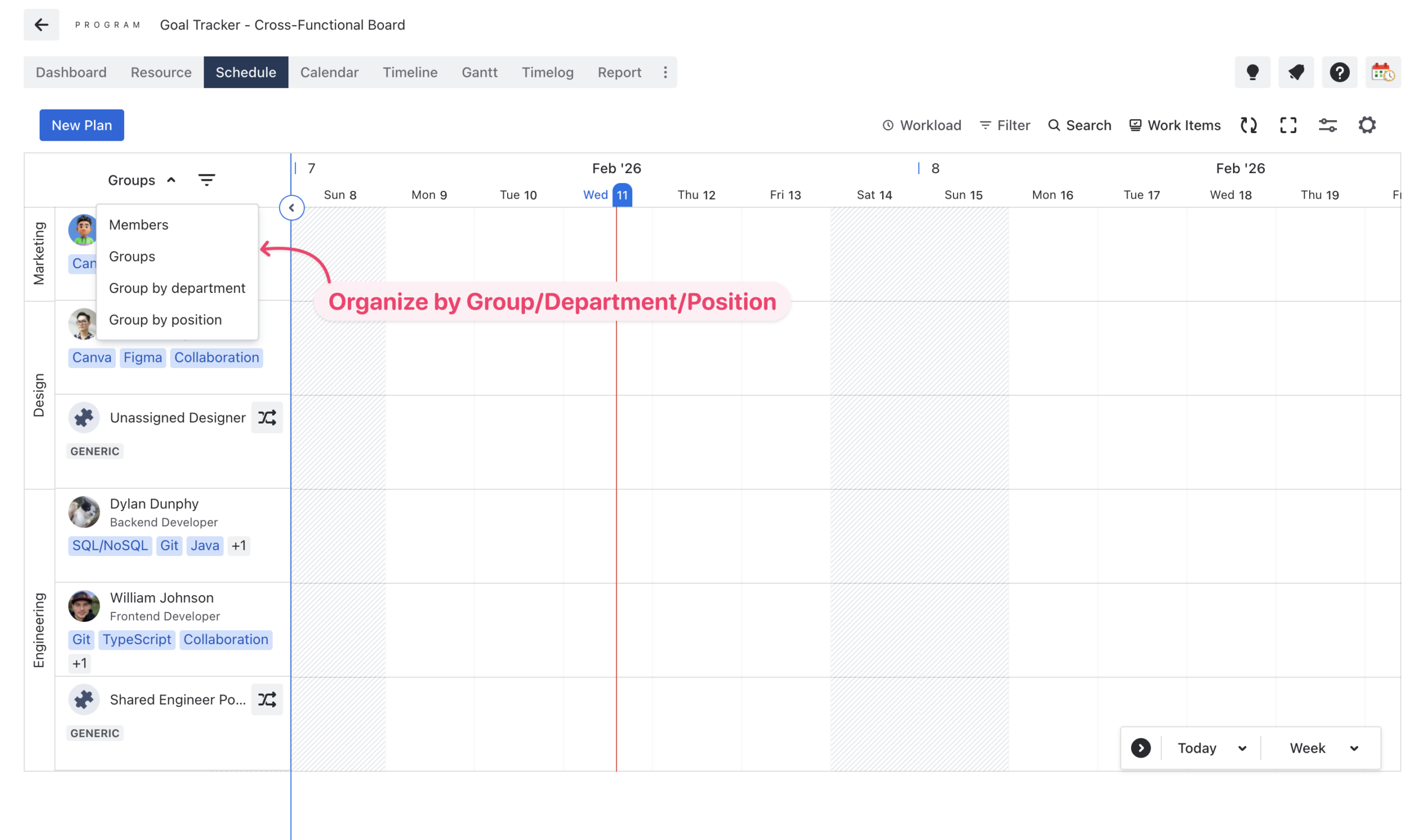
The Schedule Board is your main working view. It looks and feels like a shared calendar.
-
Open the Schedule tab inside your Program.
-
Group resources vertically by department or group (adjust this in the board settings).
-
Use filters to show only certain projects, skills, or people.
This layout gives everyone a clear, at-a-glance picture of who is working on what and when. It’s especially helpful for teams that don’t meet every day.
Tip: Experiment with day, week, or month zoom levels depending on your planning horizon.
Step 5: Create new tasks or allocate ongoing tasks on the schedule board
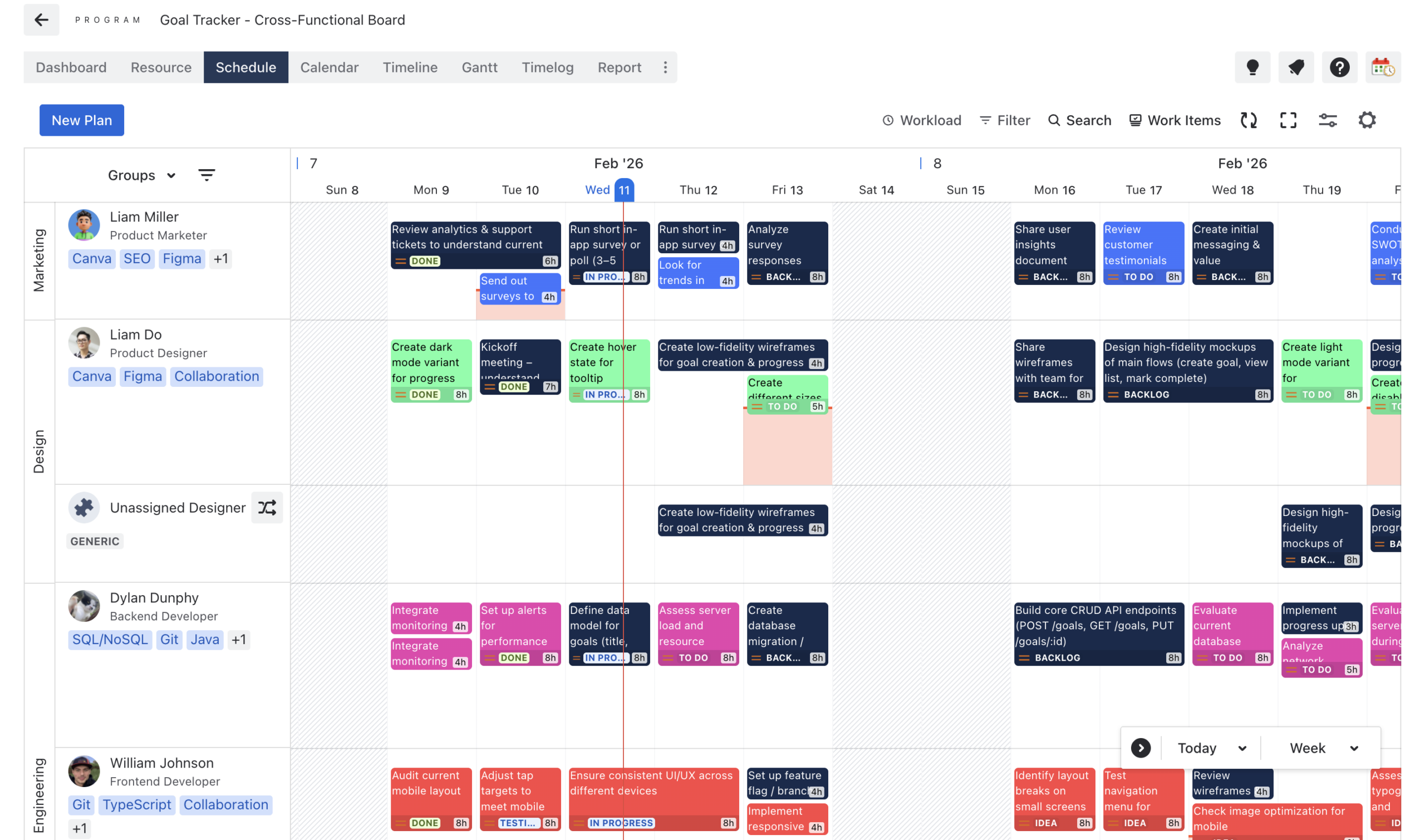
Align actions to timelines.
-
Drag Jira issues from the backlog or create new cards directly.
-
Drop onto resource slots; stretch for duration.
-
For ongoing: Reposition based on real availability.
Tasks from different projects are color-coded for clarity. Here, the cross-functional project (‘Goal Tracker Mini-Feature’) appears in denim blue. ProScheduler offers several ways to visually distinguish tasks across projects.
Tasks respect capacities now. Multi-assignee for shared work (e.g., review by design + dev). Builds next-step clarity.
Step 6: Use the Workload feature to identify bottlenecks via heatmap
Catch issues before frustration.
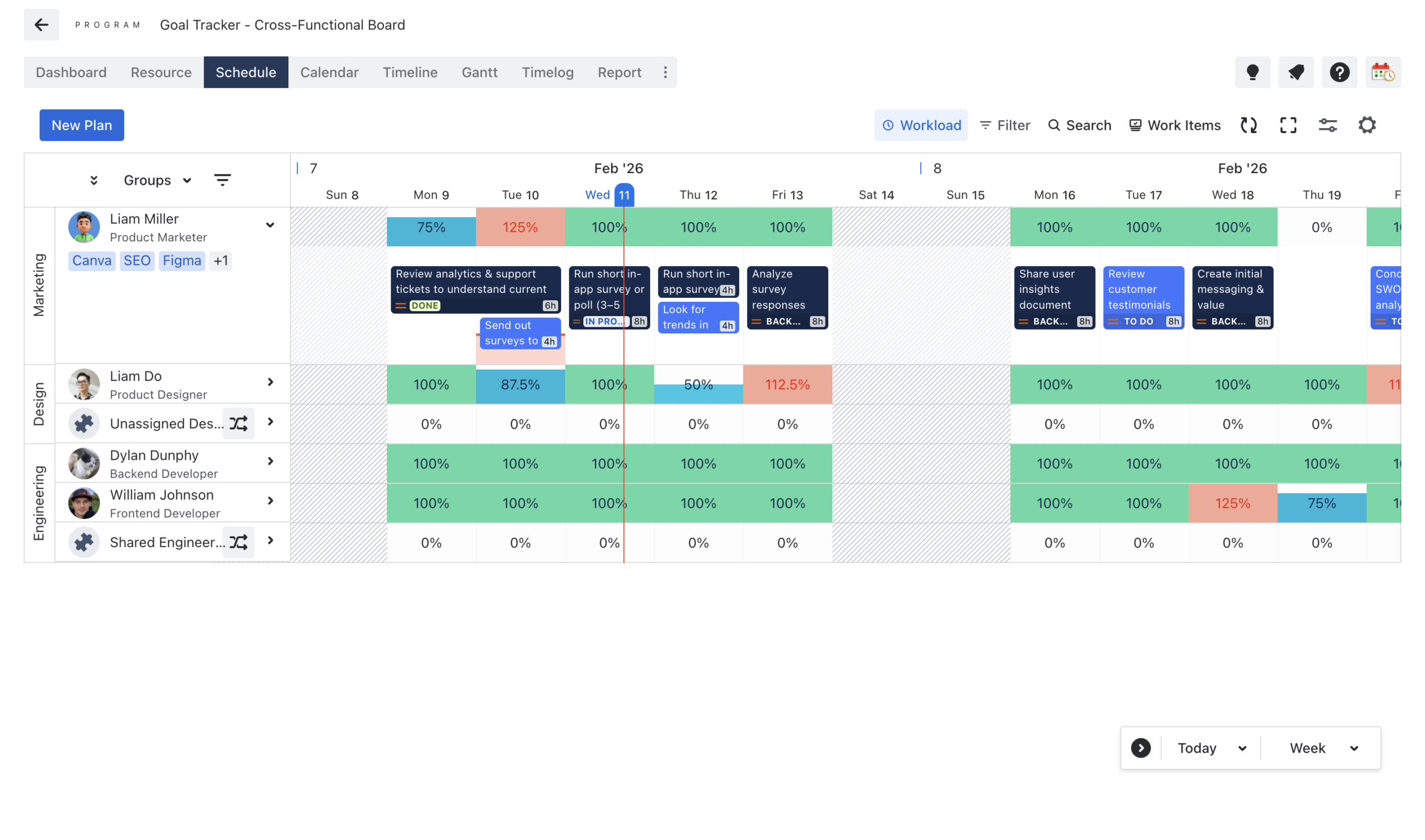
Toggle Workload on the toolbar to see heatmap colors: Blue (free), green (full), red (overload).
Red blocks show exactly where someone is stretched too thin. Hover over any cell to see total hours, assigned tasks, and overload percentage.
To fix: Drag tasks to a later date / Move them to someone with more availability / Split the work by adding another assignee.
The heatmap updates instantly, so you can see the impact of each change right away.
Step 7: Notify involved members of changes
Good communication keeps everyone aligned without flooding inboxes.
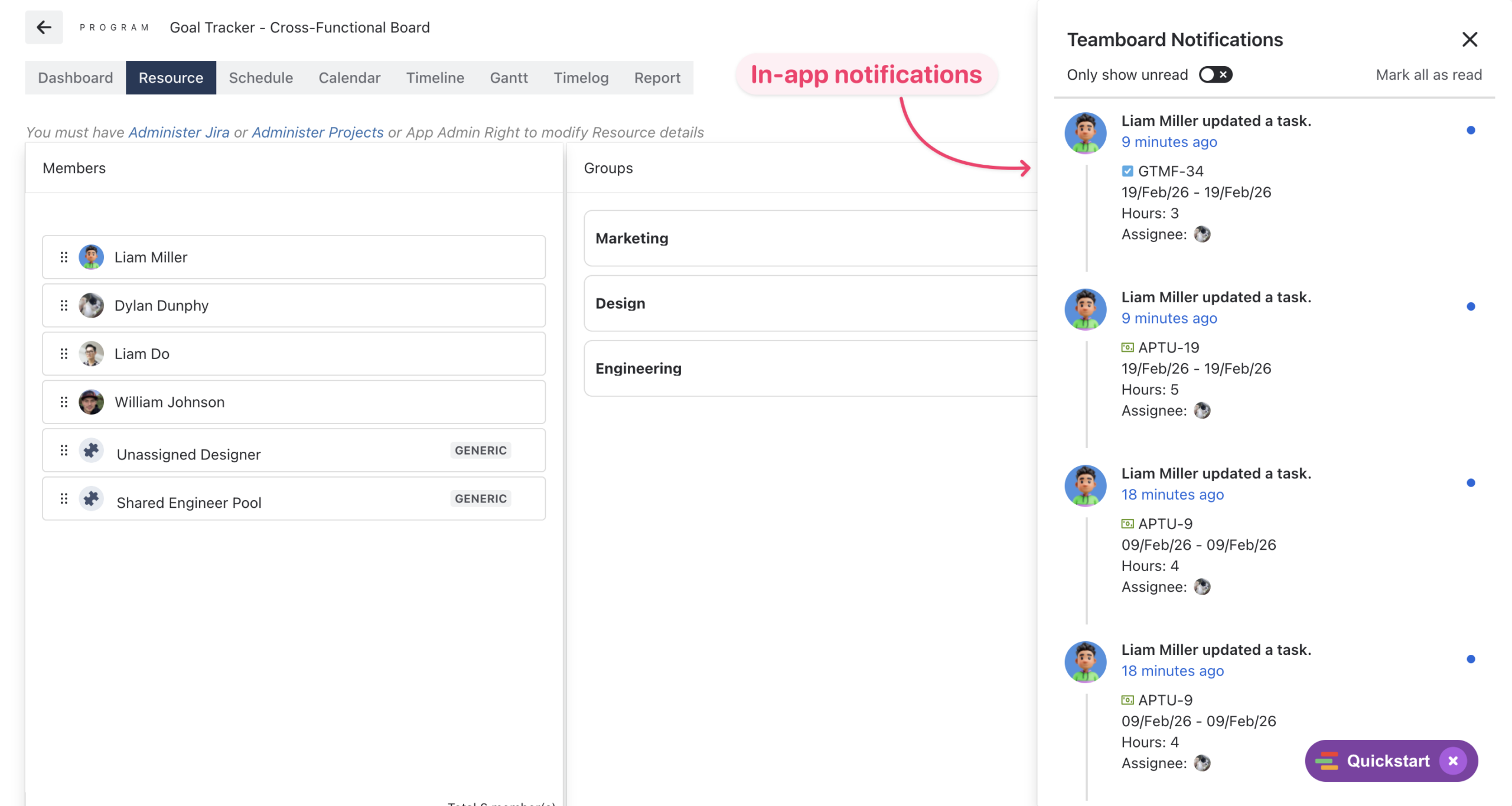
Whenever you move a task, change a date, or update assignments:
-
ProScheduler sends in-app notifications.
-
Email alerts go out to the affected people.
Take Control Today
Managing shared resources doesn’t have to be complicated. With clear visibility and a few consistent steps, you can reduce overload, cut delays, and make cross-functional work feel smoother and more enjoyable.
Start small: set up one Program for your most important initiative, get profiles updated, and begin using the Schedule Board and Workload heatmap. You’ll quickly see where the pressure points are and how easy it is to shift things around.
Your team will thank you for the clarity. Projects will land on time more often. And you’ll spend less energy firefighting and more time building.
For more details on any feature, check the ProScheduler documentation at http://docs.devsamurai.com/teamboard-proscheduler.
You’ve got this.
The post Manage shared resources in cross-functional teams appeared first on TeamBoard – Resource planning, project management and Gantt Chart for Jira, monday.com.
Leave a Reply