

Annual planning is one of the most critical and challenging activities for project managers and PMOs. While Jira is excellent for tracking work, it often falls short when teams need to plan an entire year across multiple projects, shared resources, and shifting priorities.
This is where TeamBoard ProScheduler comes in. It extends Jira with visual timelines, real-time capacity insights, and cross-project visibility, making it possible to create annual plans that reflect real availability and delivery constraints.
In this use case, we’ll walk through how teams can build a realistic, capacity-aware annual plan using ProScheduler.
What is annual planning?
Annual planning is the process of defining an organization’s goals, initiatives, and deliverables for the year ahead and mapping them into a structured execution plan. It provides a high-level view of what needs to be done, when it should happen, and who will be responsible, helping teams align strategy with day-to-day work.
In tools like Jira, annual planning goes beyond tracking individual tasks. It focuses on coordinating multiple projects, managing shared resources, and ensuring priorities remain aligned as business needs evolve throughout the year.
Benefits of Annual Planning
Effective annual planning delivers value throughout the year by providing clarity and structure.
-
Clear priorities and focus: Teams gain a shared understanding of what matters most, reducing distractions and conflicting initiatives.
-
Better resource allocation: Planning ahead helps teams distribute time, people, and budget more realistically, avoiding overload and burnout.
-
Improved decision-making: With defined goals in place, teams can quickly evaluate new requests and opportunities against strategic priorities.
-
Greater visibility and alignment: Stakeholders gain a clear picture of how projects connect to company goals and how progress will be measured.
-
Proactive risk management: Identifying dependencies and constraints early allows teams to address issues before they impact delivery.
What Should Be Included in an Annual Plan?
A strong annual plan typically includes the following elements:
-
Strategic objectives: High-level outcomes the organization wants to achieve
-
Key initiatives: Major programs or projects that support those objectives
-
Projects and deliverables: Concrete work items and milestones
-
Timeline: A yearly view organized by quarters or months
-
Ownership: Clear accountability for teams, roles, or individuals
-
Resource allocation: People, time, and budget assigned to each initiative
-
Dependencies and risks: Factors that could impact delivery and require monitoring
How to create an Annual Plan with ProScheduler
Creating an annual plan in TeamBoard ProScheduler involves breaking down yearly goals into manageable Jira work items, allocating resources based on real capacity, and visualizing the full year using Gantt charts and schedule boards.
Install TeamBoard ProScheduler from the Atlassian Marketplace and open it directly within your Jira project. This ensures all planning stays fully connected to Jira work items.
Step 1: Define Project Scope
Define the high-level goals for the year, such as product launches, marketing campaigns, or internal initiatives. These goals set the direction for the annual plan and act as the foundation for all projects and tasks created later.
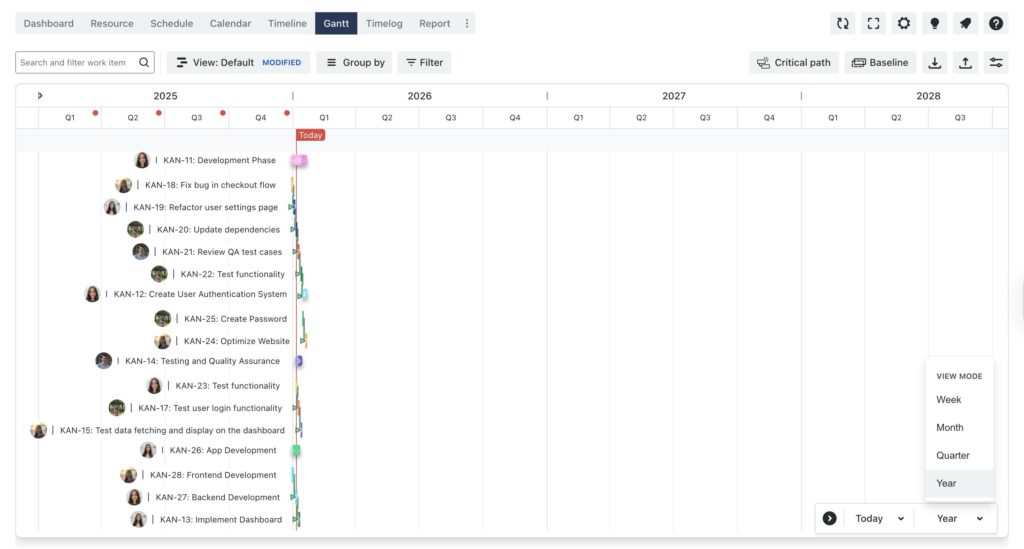
In TeamBoard ProScheduler, these goals are typically created as top-level initiatives and visualized in the Gantt view. The Gantt view allows teams to see the scope of the year at different levels of detail:
-
Year view for strategic, high-level planning
-
Quarter or month view to understand major phases and overlaps
-
Week view when refining timelines and preparing for execution
Set Working Capacity
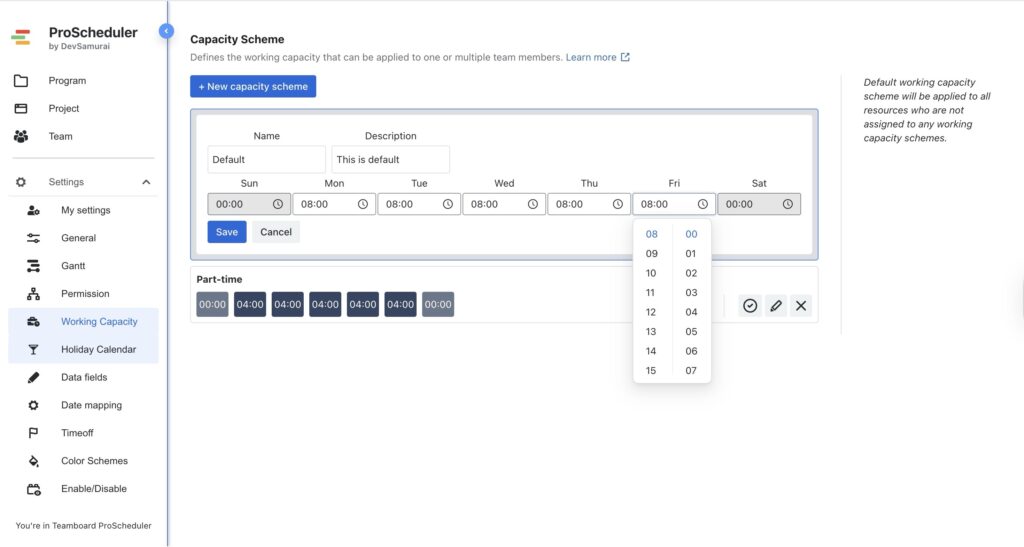
Configure working hours, holidays, and days off for each team member in the App Settings. This step ensures capacity planning is based on real working time rather than optimistic assumptions, helping teams avoid overcommitment.
Create Teams
Navigate to the Resource tab to add team members and organize them into teams or groups. Grouping resources makes it easier to manage shared capacity, compare workloads, and plan work across multiple teams.
Step 2: Define and Structure Annual Tasks
Break Down Work
Break large annual initiatives into smaller, manageable Jira issues such as Epics, Stories, or Tasks. This makes work easier to estimate, schedule, and track throughout the year.
Estimate Durations
Add time estimates to each task. By enabling “Plan with original estimation field” in settings, ProScheduler automatically distributes estimated hours across the scheduled duration, creating a more realistic view of workload over time.
Create Milestones
In the Gantt or Timeline view, convert key events—such as quarterly reviews, major releases, or final delivery dates—into milestones. Milestones help teams track progress toward major goals and keep the annual plan outcome-focused.
Step 3: Schedule and Assign Resources
Use the Schedule Board
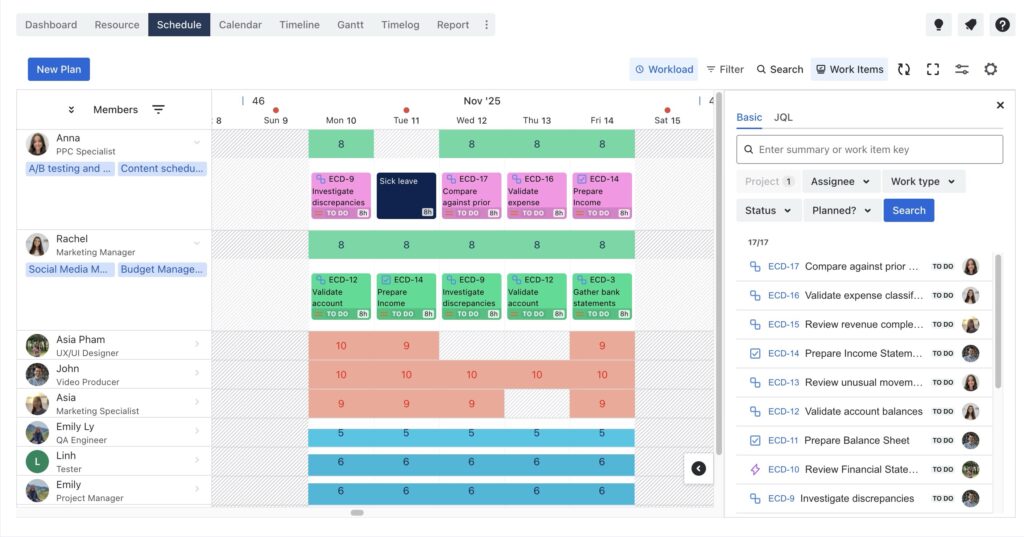
Drag and drop Jira tasks onto the Schedule Board and place them in the appropriate weeks or months. This visual approach helps teams spread work evenly across the year and identify potential scheduling conflicts early.
Allocate Resources
Assign team members to tasks directly on the Schedule Board. As assignments are made, ProScheduler visualizes individual and team workload, making it easy to spot over-allocation and rebalance work before delivery is impacted.
Set Recurring Tasks
For ongoing monthly or quarterly activities, create recurring tasks directly within the scheduling interface. Supported recurrence options include daily, weekly, bi-weekly, and monthly, ensuring recurring work is fully accounted for in the annual plan.
Step 4: Visualize and Refine the Plan (Gantt /Timeline)
Link Dependencies
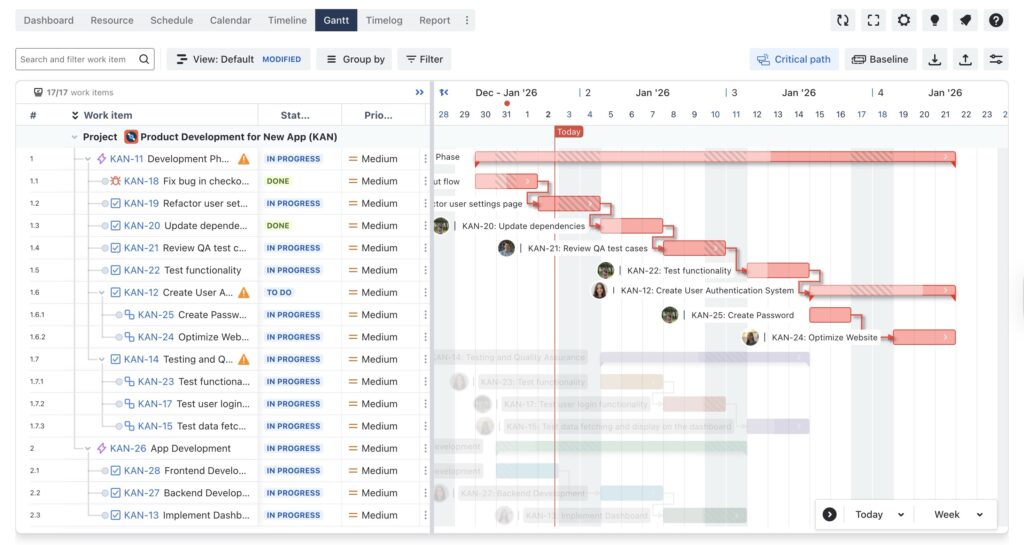
In the Gantt Chart view, establish dependencies between tasks to define a logical execution sequence—for example, ensuring Q1 planning completes before Q2 execution begins.
Adjust Timelines
Drag task bars on the Gantt Chart to adjust start and end dates as priorities change. Dependent tasks automatically update, allowing teams to see the impact of changes instantly.
Identify the Critical Path
Use the Gantt chart to identify the critical path. This highlights tasks that directly affect major deadlines, helping teams focus attention where delays would have the biggest impact.
Step 5: Monitor and Track Progress
Track Progress
Monitor task status directly from the Timeline view. Progress updates remain synced with Jira, providing real-time visibility throughout the year.
Review Workload
Use the workload heatmap to ensure no team member is overbooked. This helps teams maintain sustainable workloads and prevent burnout.
Generate Reports
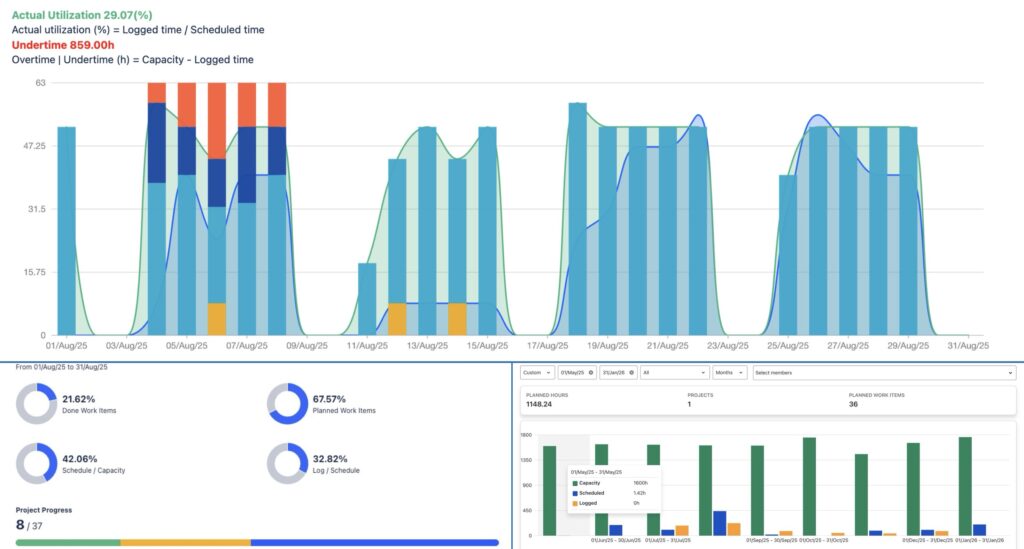
Use the Dashboard to access high-level insights, including scheduled versus actual time and overall resource utilization. These reports help stakeholders stay informed and support data-driven decision-making.
Final Thoughts
By using TeamBoard ProScheduler alongside Jira, teams can turn high-level goals into a clear, visual, and capacity-aware annual plan. From defining scope and structuring work to scheduling, balancing resources, and tracking progress, ProScheduler helps ensure plans are grounded in reality and adaptable as priorities change.
The post How to create an Annual Plan with ProScheduler appeared first on TeamBoard – Resource planning, project management and Gantt Chart for Jira, monday.com.
Leave a Reply